
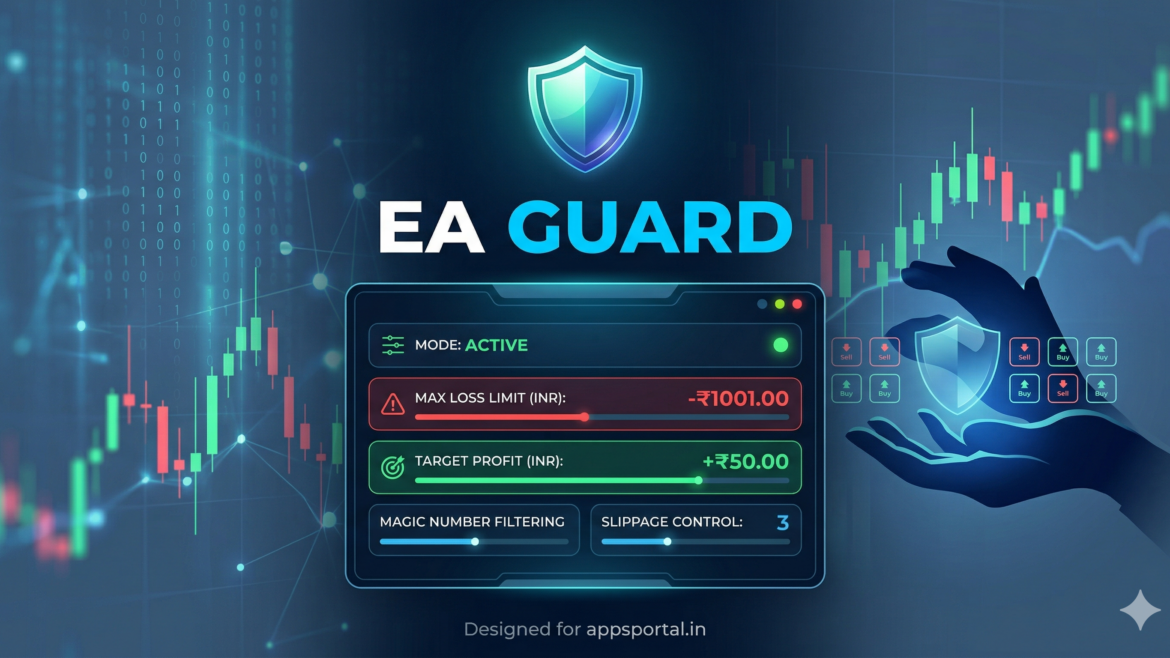

Are you struggling to manage multiple open positions in MetaTrader 5? Closing trades manually when they hit your target profit or stop loss can be emotionally exhausting and prone to errors. To solve this, we have developed a powerful, lightweight MT5 Expert Advisor (EA) that automatically manages your trades based on your predefined Net Profit and Max Loss limits.
In this post, we will share the complete MQL5 source code for this Profit/Loss Protector EA, explain its core features, and guide you on how to install it on your MT5 terminal.
Why Use an Automated P/L Manager?
When trading volatile markets like Crypto (BTC) or Forex, sudden price spikes can wipe out your account or turn a winning trade into a losing one in seconds. This EA continuously monitors your open positions and calculates the net profit, taking into account crucial factors like:
- Open position profit
- Broker commissions
- Swap charges
Once the net value reaches your target profit or hits your maximum acceptable loss, the EA instantly closes the trades, securing your capital.
Key Features of This MT5 EA
This EA is designed with flexibility in mind. Here are the customizable inputs you can tweak according to your trading strategy:
- MaxLossINR: Set your maximum acceptable loss (must be a negative value, e.g., -1000.0). If your net loss exceeds this amount, the EA will close the position.
- TargetProfitINR: Set your desired profit target (must be a positive value, e.g., 50.0). Once reached, the trade is automatically closed.
- Magic Number Filtering:
- Set it to
0to manage all manual and automated trades on the account. - Set a specific number to manage only the trades opened by another specific EA.
- Set it to
- Ignore Magic Number: If you have certain trades running that you do not want this EA to touch, simply input their magic number here.
- Slippage Control: Prevents closing trades at highly unfavorable prices during extreme market volatility.
The MQL5 Source Code | Download
Below is the complete, open-source code for the EA. You can copy this directly into your MetaEditor.
//+------------------------------------------------------------------+
//|                                                       MT5_EA.mq5 |
//|                                  Copyright 2026, appsportal.in   |
//|                                        https://www.appsportal.in |
//+------------------------------------------------------------------+
#property copyright "Copyright 2026, appsportal.in"
#property link      "https://www.appsportal.in"
#property version   "1.00"

#include <Trade/Trade.mqh>
CTrade trade;

//---- inputs
input double MaxLossINR        = -1001.0;   // Loss limit (must be negative)
input double TargetProfitINR   = 50.0;      // Target profit
input ulong  MagicNumber       = 0;         // 0 = manage all trades
input ulong  IgnoreMagicNumber = 99999;     // Magic number to IGNORE (0 = ignore none)
input int    Slippage          = 3;         // Max allowed slippage

//+------------------------------------------------------------------+
//| Initialization function                                          |
//+------------------------------------------------------------------+
int OnInit()
{
   if(MaxLossINR >= 0)
   {
      Print("ERROR: MaxLossINR must be NEGATIVE");
      return(INIT_FAILED);
   }

   if(TargetProfitINR <= 0)
   {
      Print("ERROR: TargetProfitINR must be POSITIVE");
      return(INIT_FAILED);
   }

   // Set trade parameters
   trade.SetExpertMagicNumber(MagicNumber);
   trade.SetDeviationInPoints(Slippage);
   trade.SetAsyncMode(false);

   Print("P/L Protector started | SL: ", MaxLossINR, " | TP: ", TargetProfitINR);
   return(INIT_SUCCEEDED);
}

//+------------------------------------------------------------------+
//| Deinitialization function                                        |
//+------------------------------------------------------------------+
void OnDeinit(const int reason)
{
   Print("P/L Protector stopped.");
}

//+------------------------------------------------------------------+
//| Tick Function                                                    |
//+------------------------------------------------------------------+
void OnTick()
{
   // Check all open positions
   for(int i = PositionsTotal() - 1; i >= 0; i--)
   {
      if(!PositionGetTicket(i))
          continue;

      ulong position_ticket = PositionGetInteger(POSITION_TICKET);
      ulong pos_magic = PositionGetInteger(POSITION_MAGIC);

      // Filter: Ignore specific Magic Number
      if(IgnoreMagicNumber != 0 && pos_magic == IgnoreMagicNumber)
          continue;

      // Filter: Manage specific Magic Number
      if(MagicNumber != 0 && pos_magic != MagicNumber)
          continue;

      // Calculate true Net Profit (including Swap & Commission)
      double netProfit = PositionGetDouble(POSITION_PROFIT)
                       + PositionGetDouble(POSITION_SWAP)
                       + PositionGetDouble(POSITION_COMMISSION);

      bool closeNow = false;

      // Stop Loss condition
      if(netProfit <= MaxLossINR)
          closeNow = true;

      // Take Profit condition
      if(netProfit >= TargetProfitINR)
          closeNow = true;

      // Execute Trade Closure
      if(closeNow)
      {
          if(trade.PositionClose(position_ticket, Slippage))
             Print("Position CLOSED | Ticket:", position_ticket, " | Net Profit:", netProfit);
          else
             Print("Close FAILED | Ticket:", position_ticket, " | Error:", GetLastError());
      }
   }
}
How to Install and Use This EA
- Open MetaTrader 5: Launch your MT5 trading terminal.
- Open MetaEditor: Press
F4on your keyboard to open the MQL5 programming environment. - Create a New File: Click on New -> Expert Advisor (template) and name it
PL_Manager. - Paste the Code: Delete the default code generated by the editor, and paste the code provided above.
- Compile: Click the
Compilebutton at the top (or pressF7). Ensure there are zero errors in the bottom log. - Attach to Chart: Go back to your MT5 terminal, find the EA in the Navigator panel under Expert Advisors, and drag it onto any active chart.
- Allow Algo Trading: Make sure the “Algo Trading” button at the top of MT5 is turned green, and check “Allow Algo Trading” in the EA’s settings tab.
Disclaimer: Algorithmic trading carries a high level of risk. Always test Expert Advisors on a Demo account before running them on a live account with real money.
Developed by Sandip Pawar for AppsPortal.in